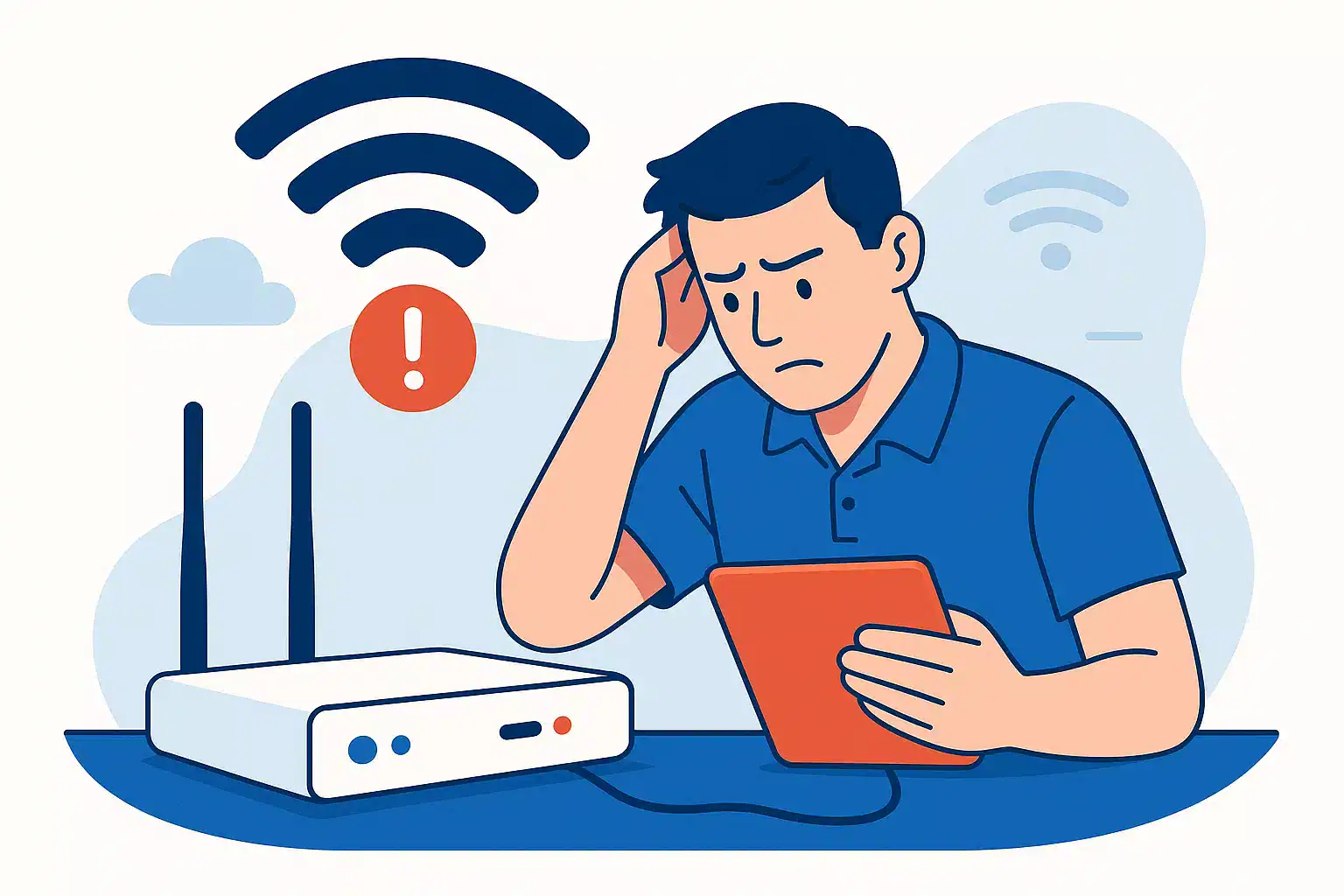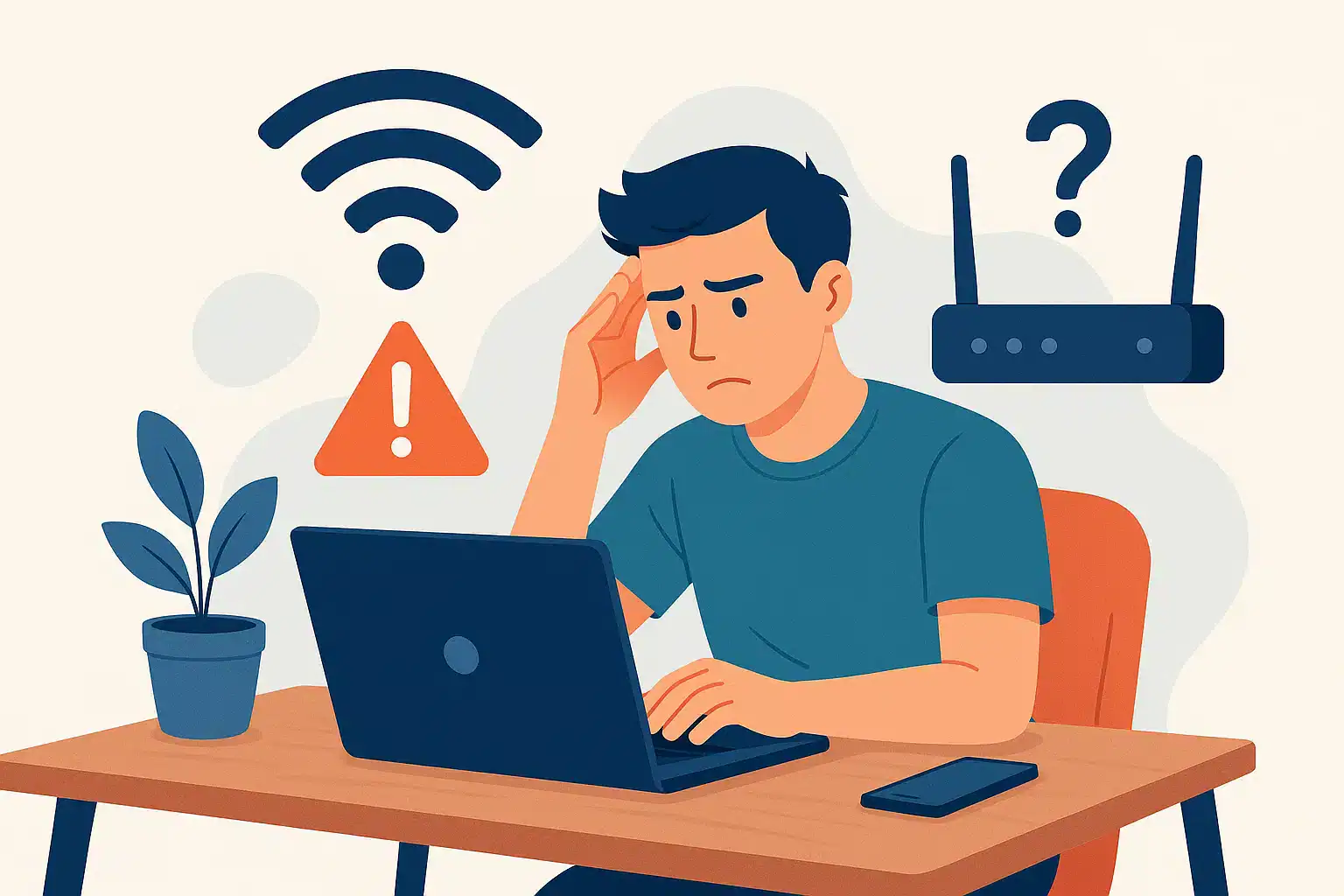
Few things frustrate users more than seeing their device connected to WiFi while being unable to browse the internet. You might notice your laptop shows connected but no internet access, or your phone connected to WiFi but no internet appears on screen. This common issue affects millions of users across all devices, including Windows computers, Android phones, iPhones, and tablets.
The good news is that this problem usually has straightforward solutions. Whether the cause lies in your device settings, router configuration, or internet service provider, you can often resolve it within minutes. This guide walks you through practical, tested fixes for every major platform. So, let’s get your connection working again.
Why Does My WiFi Say Connected But No Internet?
Understanding the difference between WiFi connection and internet access helps explain this puzzling situation. Your device connects to your router through WiFi, which creates a local network. However, your router must also connect to your internet service provider to access the wider web.
When your WiFi says connected but no internet, your device successfully communicates with the router. Yet, the router cannot reach the internet. Therefore, you see the connected status despite having no actual browsing capability.
Several culprits cause this issue. Your device might have incorrect network settings. Also, your router could be experiencing problems. Additionally, your modem might need attention, or your ISP could be experiencing an outage. Sometimes, the problem affects only one device, while other times it impacts your entire network.
Simple Solutions Before Deep Troubleshooting
Before diving into complex fixes, try these quick solutions that resolve most connectivity issues.
First, restart your device completely. This simple step clears temporary glitches and refreshes network connections. Next, toggle your WiFi off, wait ten seconds, then turn it back on. This forces your device to establish a fresh connection.
If that fails, forget your WiFi network and reconnect. Go to your WiFi settings, select your network, and choose the forget option. Then, reconnect by entering your password again.
Restarting your router and modem often solves the problem. Unplug your modem first, then your router. Wait thirty seconds before plugging the modem back in. Once its lights stabilise, plug in your router. This sequence ensures proper reconnection.
Check whether other devices can access the internet. If only one device struggles, the problem lies with that specific device. However, if all devices fail, your router or ISP likely causes the issue. Contact your provider to verify there are no outages in your area.
WiFi Connected But No Internet On Windows 10/11
Windows devices offer several built-in tools to diagnose and fix network problems.
Running The Network Troubleshooter
Start by using the Windows Network Troubleshooter. Right-click the network icon in your taskbar and select “Troubleshoot problems.” Windows automatically scans for issues and attempts repairs. This tool resolves many common problems without manual intervention.
Resetting Network Components
Open Command Prompt as administrator and run these commands one at a time:
ipconfig /flushdnsclears your DNS cachenetsh winsock resetresets the Winsock cataloguenetsh int ip resetresets TCP/IP settings
Restart your computer after running these commands. These steps clear corrupted network data that might block your connection.
Updating Drivers And Settings
Outdated network adapter drivers cause connectivity problems. Open Device Manager, expand Network adapters, right-click your WiFi adapter, and select “Update driver.” Choose automatic search to find the latest version.
Additionally, check your proxy settings. Go to Settings, then Network & Internet, then Proxy. Ensure “Automatically detect settings” is enabled and manual proxy is disabled. Incorrect proxy configurations prevent internet access despite WiFi connectivity.
WiFi Connected But No Internet On Android Phones And Tablets
Android devices require slightly different troubleshooting approaches.
Begin by restarting your phone or tablet. Hold the power button and select restart. This clears temporary files and refreshes all connections.
Next, forget your WiFi network. Go to Settings, then WiFi, tap your network name, and select Forget. Reconnect by selecting the network and entering your password.
Check your date and time settings, because incorrect values cause authentication failures. Go to Settings, then System, then Date & time. Enable automatic date and time to ensure accuracy.
Resetting network settings clears all saved networks and Bluetooth pairings. Navigate to Settings, then System, then Reset options, then Reset WiFi, mobile & Bluetooth. This comprehensive reset often fixes stubborn connectivity issues.
If you use a VPN, disable it temporarily. VPN applications sometimes interfere with normal internet access. Similarly, switching from DHCP to Static IP or vice versa can resolve conflicts.
WiFi Connected But No Internet On iOS Devices
iPhone and iPad users can follow these steps to restore connectivity.
Restart your device by holding the power button and sliding to power off. Wait thirty seconds before turning it back on. This simple action resolves many temporary glitches.
Forget your WiFi network by going to Settings, then WiFi, tapping the information icon next to your network, and selecting “Forget This Network.” Reconnect afterwards.
Renewing your DHCP lease requests a fresh IP address. Go to Settings, then WiFi, tap your network, and select “Renew Lease.” This often resolves IP conflicts causing connectivity problems.
Resetting network settings provides a comprehensive fix. Navigate to Settings, then General, then Transfer or Reset iPhone, then Reset, then Reset Network Settings. Note that this erases all saved WiFi passwords.
Conclusion
WiFi connected but no internet issues affect everyone eventually. However, most problems resolve quickly with basic troubleshooting. Start with simple restarts, then progress to network resets and driver updates. Understanding whether the issue affects one device or your entire network helps target your efforts effectively.
If you are in need of any IT or Cloud services, you can book a call with us today or check out the freebies we have to offer.
Frequently Asked Questions
How Do I Fix WiFi Connected But No Internet On My Laptop?
Start by restarting your laptop and router, then run the Windows Network Troubleshooter and flush your DNS cache using Command Prompt.
Why Does My Phone Show Connected To WiFi But Has No Internet?
Your phone connects to the router successfully, but the router cannot reach the internet due to ISP issues, incorrect settings, or router problems.
Will Resetting Network Settings Delete My Data?
Resetting network settings only removes saved WiFi passwords, Bluetooth pairings, and VPN configurations, leaving your personal files and apps untouched.
Should I Contact My ISP If Troubleshooting Fails?
Yes, contact your ISP if all devices lack internet access after troubleshooting, because the problem likely exists on their end or with your account.
How Often Should I Restart My Router?
Restarting your router monthly helps maintain optimal performance and prevents many connectivity issues from developing.