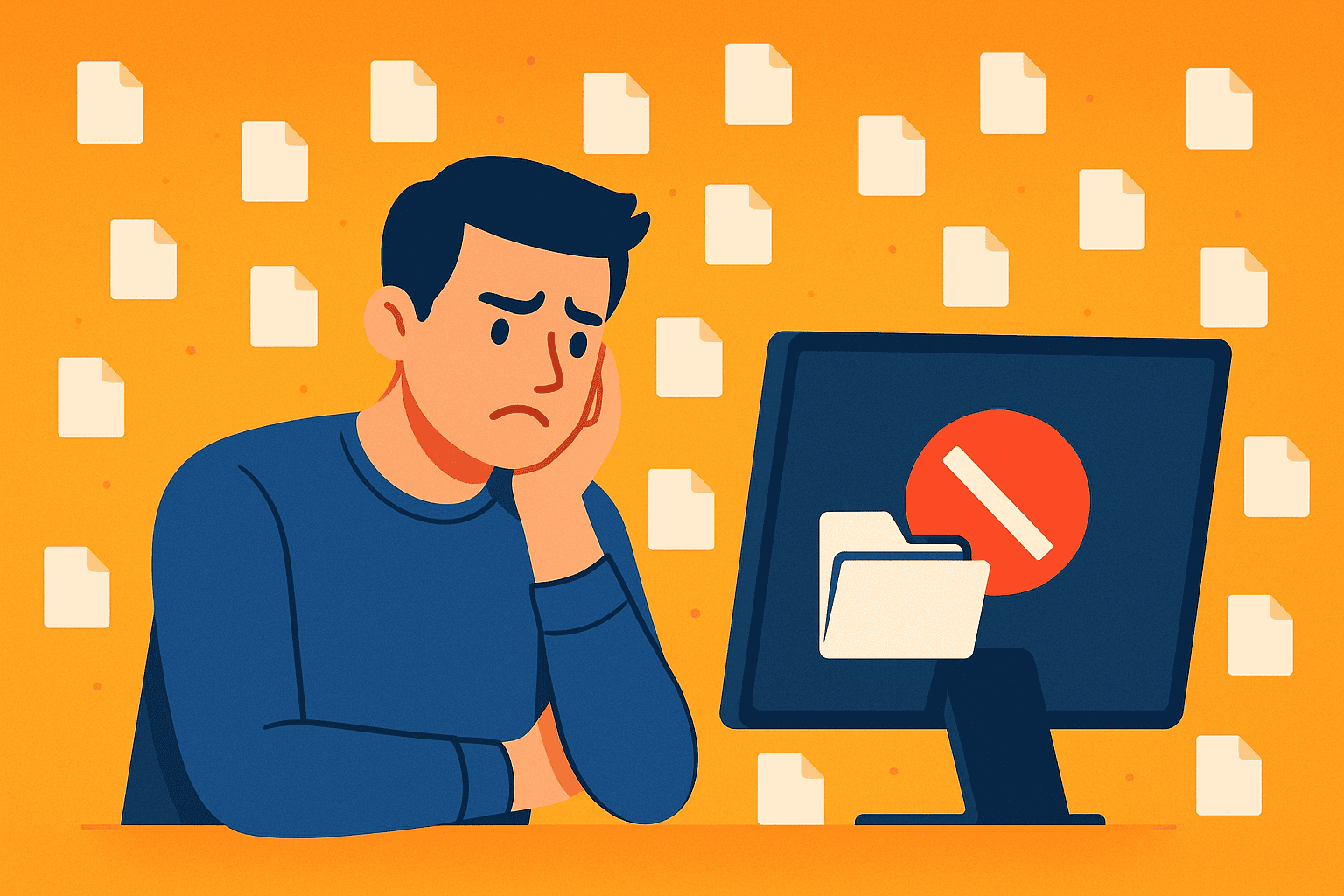
We have all been there. You download a file and save it to the desktop because it seems quick and convenient. Before you know it, your screen becomes a chaotic mess of icons, folders, and forgotten documents. This common habit affects millions of computer users across the UK, yet most people never consider the consequences.
I stopped recommending desktop file storage years ago. The reasons are straightforward: it damages your computer’s performance and creates organisational nightmares. Therefore, understanding why this practice causes problems will help you work more efficiently. In this post, I will explain the real impact of desktop clutter and share practical alternatives that professionals use every day.
How Desktop File Storage Affects Your Computer Performance
Your desktop is not simply a visual space. Windows treats it as an active folder that requires constant system attention. Every file sitting on your desktop consumes valuable RAM because your computer continuously renders each icon and thumbnail.
When you start your computer, Windows loads every desktop item into memory. So, if you have dozens of files scattered across your screen, your boot time increases significantly. This process happens every single time you switch on your machine.
Additionally, your system generates preview thumbnails for images, documents, and videos. This thumbnail generation runs in the background and uses processing power you could allocate elsewhere. The more files you store, the harder your computer works.
Performance degradation becomes noticeable when you exceed 20-30 files on your desktop. However, many users far surpass this threshold without realising the consequences. SSDs handle this burden better than traditional hard drives, yet both suffer from excessive desktop storage.
The Real Problems With Desktop File Storage
Beyond performance issues, desktop storage creates significant organisational challenges. Because everything sits at the same level, you cannot establish any meaningful hierarchy or categorisation system.
Finding specific files becomes increasingly difficult as your collection grows. You end up scrolling through endless icons, wasting precious time that could go towards productive work. Also, visual clutter affects your concentration and mental clarity throughout the day.
Security concerns also arise when sensitive documents remain visible on your desktop. Anyone walking past your computer can see file names and potentially confidential information. Furthermore, desktop files face higher risks of accidental deletion during routine cleanup sessions.
Backup complications frequently occur with desktop storage. Many automatic backup systems prioritise the Documents folder over the desktop location. Then, when you need to recover important files, you discover they were never properly protected.
Desktop Versus Documents Folder And Cloud Alternatives
The Documents folder exists specifically for file storage. Windows indexes this location more efficiently, meaning your searches return faster results. Also, most backup solutions automatically include Documents in their protection scope.
OneDrive integration offers UK businesses excellent accessibility and compliance benefits. Your files sync across devices automatically, so you can access them from anywhere. Cloud storage also provides version history, allowing you to recover previous file versions when needed.
Network drives work brilliantly for team environments. Multiple colleagues can access shared folders without cluttering individual desktops. Therefore, collaboration improves while maintaining proper organisational structures.
Creating dedicated project folders within Documents gives you logical categorisation. You can organise files by client, date, or project type. This approach makes retrieval intuitive and saves considerable time over the long term.
Professional File Organisation Best Practices
Establishing a hierarchical folder structure transforms your productivity. Start with broad categories, then create subfolders for specific projects or clients. For example, you might have Work > Clients > Client Name > Project Name as your basic structure.
Consistent naming conventions prevent confusion and aid searching. Include dates in YYYY-MM-DD format at the start of file names for chronological sorting. Next, add descriptive terms that clearly identify the content.
Use shortcuts instead of storing actual files on your desktop. A shortcut points to your properly organised file without consuming additional resources. You maintain quick access while keeping your system running smoothly.
Schedule regular file audits every month. Archive completed projects to reduce active clutter. Then, delete files you no longer need to free up storage space.
Keep your desktop limited to shortcuts for daily applications only. Aim for fewer than ten items total. This discipline maintains both performance and visual clarity.
Conclusion
Desktop file storage creates genuine problems for your computer’s performance and your personal productivity. The habit seems convenient initially, yet it leads to slower boot times, organisational chaos, and backup vulnerabilities.
Transitioning to proper file management is straightforward. Start by auditing your current desktop contents today. Move files into a logical Documents folder structure and experience the immediate benefits.
If you are in need of any IT or Cloud services, you can book a call with us today or check out our latest videos to learn more about us.
Frequently Asked Questions
Does Saving Files To The Desktop Really Slow Down My Computer?
Yes, desktop files consume RAM as Windows continuously renders icons and thumbnails. This impacts boot time and overall performance, especially when you exceed 20-30 files.
Where Should I Save My Files Instead Of The Desktop?
Save files in the Documents folder using a logical folder structure organised by project, client, or category. Cloud storage like OneDrive also offers excellent accessibility and automatic backups.
How Many Files Can I Keep On My Desktop Without Affecting Performance?
Aim for fewer than 10-15 items on your desktop. Ideally, keep only shortcuts to frequently used applications and perhaps one active project folder.
Will Moving Files From Desktop To Documents Folder Speed Up My PC?
Yes, you should notice improvements in boot time and general system responsiveness after relocating files to properly organised folders.
Is Cloud Storage Better Than Desktop Storage For Business Files?
Absolutely. Cloud storage provides automatic backups, version history, and accessibility from any device. It also supports compliance requirements that many UK businesses must meet.