Is your computer taking ages to load? You are not alone. A slow or lagging computer frustrates millions of users every day. The good news is that most performance issues have simple solutions. You do not need technical expertise or expensive software to fix them.
Over time, computers accumulate unnecessary files, programmes, and processes. These elements consume valuable resources and slow everything down. However, with a few straightforward steps, you can dramatically improve your computer’s speed. This guide covers practical, free methods to make your computer faster. Whether you own an ageing laptop or a desktop that has slowed down, these tips will help restore performance.
Why Is My Computer Running So Slow?
Understanding the cause helps you find the right solution. Several common factors contribute to slow computer performance.
Firstly, too many startup programmes launch when you turn on your computer. Each programme consumes memory and processing power. Consequently, your system struggles before you even begin working.
Secondly, insufficient storage space creates problems. When your hard drive fills up, Windows lacks room for temporary files. This significantly impacts performance.
Additionally, outdated software and operating systems cause slowdowns. Updates often include performance improvements and security patches. Therefore, skipping updates can leave your system vulnerable and sluggish.
Malware and viruses also drain resources silently. They run hidden processes that consume CPU and memory. Furthermore, browser issues like excessive tabs and extensions create additional strain.
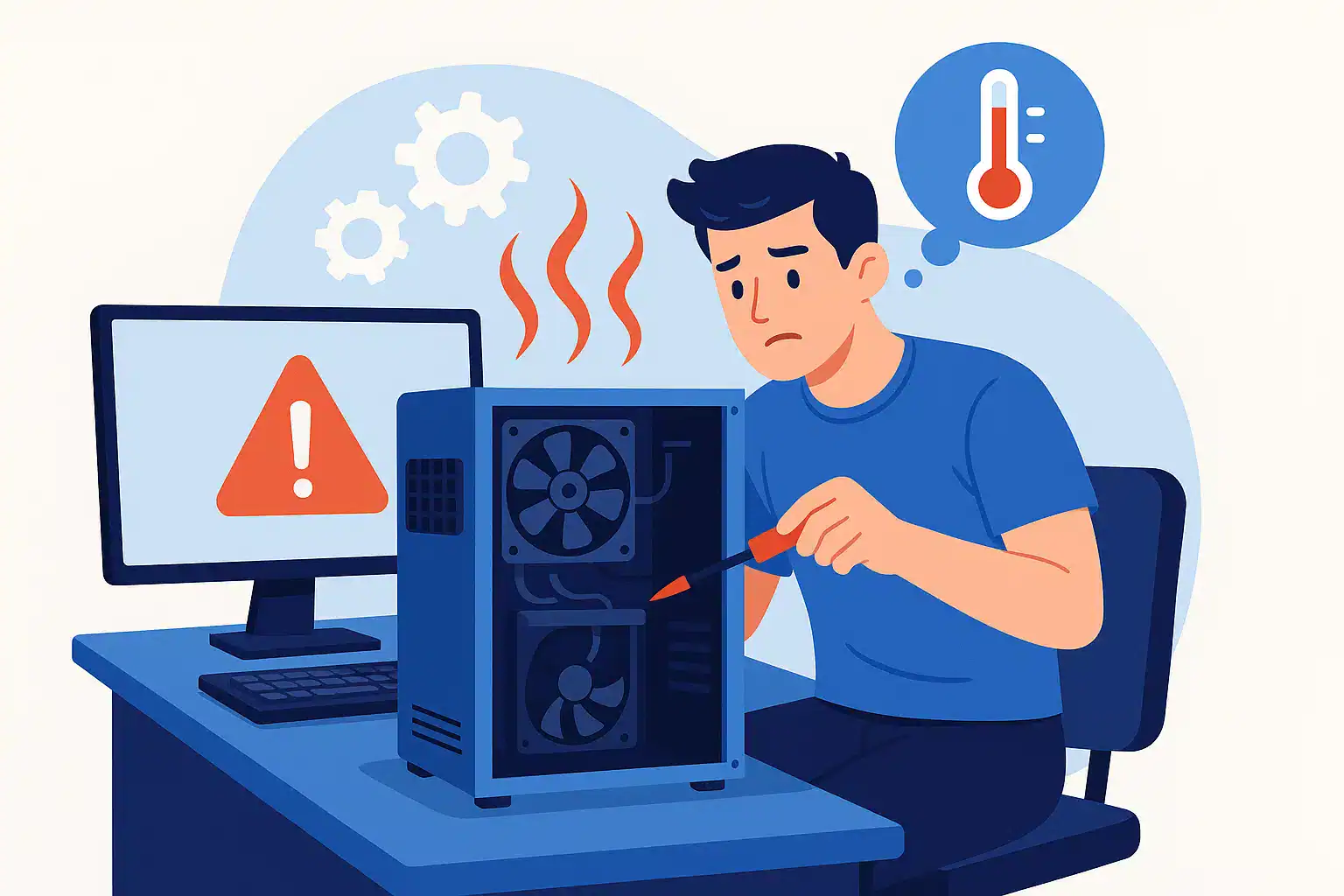
Finally, dust accumulation causes overheating. When components overheat, they throttle performance to prevent damage. So, physical maintenance matters too.
Quick Diagnostic Steps Before You Begin
Before making changes, identify what causes your specific slowdown. This saves time and ensures you target the right issues.
Press Ctrl + Shift + Esc to open Task Manager. Click “More details” if needed. Then, examine the Processes tab. Look for programmes using high percentages of CPU, Memory, or Disk.
Next, check your storage space. Open File Explorer and right-click your main drive. Select Properties to see available space. You should maintain at least 10-15% free space for optimal performance.
Also, try a simple restart first. Many issues resolve themselves after a fresh boot. This clears temporary files and resets stuck processes.
Simple Ways To Speed Up Your Computer Immediately
Disable Unnecessary Startup Programmes
Many programmes configure themselves to launch at startup. This extends boot time and wastes resources.
Open Task Manager and click the Startup tab. You will see programmes listed with their startup impact. Right-click unnecessary items and select Disable. Focus on programmes rated as “High” impact first.
Keep essential items like antivirus software enabled. However, disable media players, messaging apps, and cloud storage clients. You can always launch these manually when needed.
Uninstall Unused Programmes And Bloatware
Unused programmes occupy storage space and sometimes run background processes. Removing them frees resources immediately.
Open Settings, then Apps, then Installed apps. Sort by size to identify large programmes. Uninstall anything you no longer use. Also, remove pre-installed bloatware that came with your computer.
Clear Temporary Files And Free Up Storage Space
Windows accumulates temporary files over time. These files serve no purpose but consume valuable space.
Search for “Disk Cleanup” in the Start menu. Select your main drive and click OK. Check all boxes, including system files. Then click OK to delete them.
Additionally, empty your Recycle Bin regularly. Clear your browser cache and delete old downloads. These simple actions often recover gigabytes of space.
Optimise Your Windows Settings For Better Performance
Adjust Visual Effects And Animations
Windows includes visual effects that look nice but consume resources. Disabling them improves performance noticeably.
Search for “performance” in the Start menu. Select “Adjust the appearance and performance of Windows.” Choose “Adjust for best performance” or manually disable specific effects.
Disable Background Apps And Adjust Power Settings
Background apps consume resources even when minimised. Open Settings, then Apps, then Installed apps. Click the three dots beside each app and select Advanced options. Set background permissions to Never.
Furthermore, switch your power plan to High Performance. Search for “power plan” and select this option. This prevents your computer from throttling performance to save energy.
Keep Your System Updated And Secure
Install Windows Updates And Scan for Malware
Updates contain important performance improvements. Open Settings, then Windows Update. Click “Check for updates” and install any available.
Also, run regular malware scans. Windows Defender provides excellent protection. Open Windows Security and run a full scan. This removes hidden threats that slow your system.
Conclusion
A slow computer does not mean you need a replacement. Simple maintenance tasks restore performance effectively. Start by disabling startup programmes and removing unused software. Then clear temporary files and optimise Windows settings. Regular updates and malware scans keep your system running smoothly.
If you are in need of any IT or Cloud services, you can book a call with us today or check out the freebies we have to offer.
Frequently Asked Questions
Why Is My Laptop So Slow All Of A Sudden?
Sudden slowdowns often result from malware infections, Windows updates running in the background, or a nearly full hard drive. Check Task Manager to identify resource-heavy processes.
How Do I Speed Up My Computer Startup?
Disable unnecessary startup programmes through Task Manager. Also, ensure your computer has adequate free storage space and consider upgrading to an SSD.
Will Adding More RAM Speed Up My Computer?
More RAM helps if your current memory is insufficient. Check Task Manager to see if memory usage consistently exceeds 80% during normal use.
How Often Should I Clean Up My Computer?
Perform basic maintenance monthly. This includes clearing temporary files, checking for updates, and running malware scans.
Can I Speed Up My Computer Without Installing Software?
Yes, Windows includes built-in tools for optimisation. Disk Cleanup, Task Manager, and Settings provide everything needed for basic performance improvements.